Showing posts with label SCCM 2012. Show all posts

Tuesday, November 5, 2013

SCCM 2012 PORTALWEB is not responding to HTTP requests

After installing the Application Catalog in Config Manager 2012 on Windows Server 2008 R2 it is common to see the following error in SMS_PORTALWEB_CONTROL_MANAGER:

Portal Web Site Control Manager detected PORTALWEB is not responding to HTTP requests.  The http status code and text is 500, Internal Server Error.
Possible cause: Internet Information Services (IIS) isn't configured to listen on the ports over which PORTALWEB is configured to communicate.
Solution: Verify that the designated Web Site is configured to use the same ports which PORTALWEB is configured to use.

Possible cause: The designated Web Site is disabled in IIS.
Solution: Verify that the designated Web Site is enabled, and functioning properly.

For more information, refer to Microsoft Knowledge Base.


This issue occurs because the Applicationhost.config file for Windows Process Activation Service (WAS) has the following section defined, and this section is incompatible with the .NET Framework 4.0.

<add name="ServiceModel" type="System.ServiceModel.Activation.HttpModule, System.ServiceModel, Version=3.0.0.0, Culture=neutral, PublicKeyToken=b77a5c561934e089" preCondition="managedHandler" />
This section should be defined as follows:
<add name="ServiceModel" type="System.ServiceModel.Activation.HttpModule, System.ServiceModel, Version=3.0.0.0, Culture=neutral, PublicKeyToken=b77a5c561934e089" preCondition="managedHandler,runtimeVersionv2.0" />

Note: You can find the Applicationhost.config file in the following location:
%windir%\system32\inetsrv\config
To resolve this issue ASP.NET needs to be registered with .NET Framework 4.0.:

1. Navigate to the following path:
%windir%\Microsoft.NET\Framework\v4.0.30319 (x86 Windows)
OR
%windir%\Microsoft.NET\Framework64\v4.0.30319 (x64 Windows)

2. Run "aspnet_regiis.exe" /iru


Viola! Keep an eye on status manager over the next hour and you will see that this error message will disappear.

Thursday, October 17, 2013

Include Cumulative Update or Patch in SCCM Task Sequence

I think this is fairly well publicised however I thought I would post my way of integrating a Cumulative Update or Patch into a SCCM Task Sequence. I will use the latest Configuration Manager 2012 SP1 Cumulative Update 3 (http://support.microsoft.com/kb/2882125) as an example, however this process can be reused for future Cumulative Update or Hotfix releases.

1. Make a copy of the SCCM Client Source (folder) and copy it to your package source location. The SCCM client can be found under: C:\Program Files\Microsoft Configuration Manager\Client.


2. Depending on the hardware architecture (x86 or x64) copy the associated hotfix from:
C:\Program Files\Microsoft Configuration Manager\hotfix\KB2882125\Client\x64
or
C:\Program Files\Microsoft Configuration Manager\hotfix\KB2882125\Client\i386

Create a x64 and x86 folder under a new 'Patch' folder.

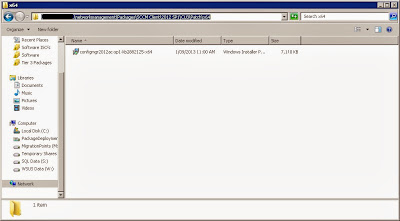
Copy the configmgr2012ac-sp1-kb2882125-<architecture>.msp file to the associated folder in the copied client source.
 
 
3. Create a new package pointing to the copied Configuration Manager Client Install source and name it 'Configuration Manager Client with CU3' or similar. There is no need to create any associated program as the Task Sequence step will take care of the client install.


4. Open you Task Sequence and select the 'Setup Windows and Configuration Manager' step. Modify the installation properties to include the following switch:
 
PATCH="%_SMSTSMDataPath%\OSD\<packageID\Patch\x64\configmgr2012ac-sp1-kb2882125-x64.msp"
 
or
 
PATCH="%_SMSTSMDataPath%\OSD\<packageID>\Patch\x86\configmgr2012ac-sp1-kb2882125-i386.msp"


Wednesday, September 25, 2013

Pause SCCM Task Sequence with PowerShell

Lately I have found myself adding allot of pauses into Task Sequences for some buggy applications. It seems to be allot more prevalent in SCCM 2012 SP1 and Windows 7 Task Sequences.

Anyhow for whatever reason you need to create a pause in a Task Sequence (Sophos is an application that comes to mind) here is the steps:

1. Create a 'Run Command Line' step in the task sequence.

2. Add the following PowerShell command to the command line field in the new step:
powershell.exe -executionpolicy bypass -command "Start-Sleep -s 120"

Note: -s is used to specify the number of seconds to pause for. -m switch can be used however this is milliseconds NOT minutes :)

Happy Task Sequencing!

Thursday, September 12, 2013

Disable Features in SCCM Task Sequence

Back doing an SOE for a customer and thought I would share how i disable and enable features in a SCCM Task Sequence. This is a good alternative if you do not want to modify the unnatend.xml file.

For a while now DISM.exe has been used to modify features and files in a WIM image. I have put together a simple command that will disable a feature. You can run this within your task sequence as a seperate command or run multple iterations within a batch script.

Here is an example of how to disable all the games in a Task Sequence:

start "" /w /d "%SystemRoot%\System32" "dism.exe" /online /disable-feature /featurename:InboxGames /Quiet /NoRestart
start "" /w /d "%SystemRoot%\System32" "dism.exe" /online /disable-feature /featurename:"More Games" /Quiet /NoRestart
start "" /w /d "%SystemRoot%\System32" "dism.exe" /online /disable-feature /featurename:Solitaire /Quiet /NoRestart
start "" /w /d "%SystemRoot%\System32" "dism.exe" /online /disable-feature /featurename:SpiderSolitaire /Quiet /NoRestart
start "" /w /d "%SystemRoot%\System32" "dism.exe" /online /disable-feature /featurename:Hearts /Quiet /NoRestart
start "" /w /d "%SystemRoot%\System32" "dism.exe" /online /disable-feature /featurename:FreeCell /Quiet /NoRestart
start "" /w /d "%SystemRoot%\System32" "dism.exe" /online /disable-feature /featurename:Minesweeper /Quiet /NoRestart
start "" /w /d "%SystemRoot%\System32" "dism.exe" /online /disable-feature /featurename:PurblePlace /Quiet /NoRestart
start "" /w /d "%SystemRoot%\System32" "dism.exe" /online /disable-feature /featurename:Chess /Quiet /NoRestart
start "" /w /d "%SystemRoot%\System32" "dism.exe" /online /disable-feature /featurename:Shanghai /Quiet /NoRestart
start "" /w /d "%SystemRoot%\System32" "dism.exe" /online /disable-feature /featurename:"Internet Games" /Quiet /NoRestart
start "" /w /d "%SystemRoot%\System32" "dism.exe" /online /disable-feature /featurename:"Internet Checkers" /NoRestart
start "" /w /d "%SystemRoot%\System32" "dism.exe" /online /disable-feature /featurename:"Internet Backgammon" /Quiet /NoRestart
start "" /w /d "%SystemRoot%\System32" "dism.exe" /online /disable-feature /featurename:"Internet Spades" /Quiet /NoRestart


I have put these commands into a batch file named customisations.bat. I then add the customisations to a package in SCCM.

From there i create a command line step in the Task Sequence to the batch file from the package.


Monday, September 9, 2013

SCCM 2012 SP1 Reports not running from the Config Manager Console

Recently I had an issue running SCCM 2012 SP1 reports from within the Configuration Manager Console. They would run from SQL Reporting Services fine.
The SQL Reporting Services were running from a remote server.

I checked the smsadminui.log a came across the following error:
System.BadImageFormatException


The issue was a result of Report Viewer not working as expected.
To resolve the issue I removed the Report Viewer and reinstalled.
You can re-run the Report Viewer from the following path:
C:\Program Files\Microsoft Configuration Manager\AdminConsole\bin\ReportViewer.exe

Thursday, August 29, 2013

SCCM 2012 SP1 Prerequisites - PowerShell Script


For those of you who have done a SCCM 2012 SP1 install would know it can be quite frustrating making sure all the prerequisites are in place before kicking off an install.

I particularly struggle with the Application Catalogue pre-requisites.

 
I came across this great script that will install the required prerequisites for any role and site server combo:


Here are the different combinations, as you can see almost every prerequisite scenario is covered off:

.\Install-SCCMPrereqs.ps1 -SiteType CAS

.\Install-SCCMPrereqs.ps1 -SiteType Primary

.\Install-SCCMPrereqs.ps1 -SiteType Secondary

.\Install-SCCMPrereqs.ps1 -SystemRole ApplicationCatalog

.\Install-SCCMPrereqs.ps1 -ExtendSchema

.\Install-SCCMPrereqs.ps1 -InstallWADK

.\Install-SCCMPrereqs.ps1 -InstallWSUS